
How to Print High-Quality Mandalas at Home
Anuncios
Want calming, beautiful mandalas on paper without spending a fortune? The good news is that with the right setup, you can get crisp lines, rich contrast, and smooth coloring results using home printing. In this practical guide, you’ll learn exactly how to print high-quality mandalas at home, from choosing the right file to perfecting your printer settings. Along the way, we’ll cover print mandalas, printable PDF tips, and how to use mandala templates to create stunning coloring pages—including A4 printables and free downloads.
Step 1: Gather Everything You Need Before You Print
Before you start, it helps to set yourself up for success. Printing quality usually depends more on preparation than on luck.
What you’ll need
- A printable PDF (common for A4 printables and mandala templates)
- A printer capable of decent fine detail (inkjet or laser both work)
- Paper you’ll be happy coloring on (more on this below)
- Your device to open the file (computer, tablet, or phone)
- Basic tools: scissors for trimming (optional), a test sheet, and a clean workspace
Choose the right paper for best results
Mandala lines look better when the paper supports crisp ink. If you’re using colored pencils or markers, consider:
Anuncios
- Printer paper (standard 80 gsm): okay for pencil coloring, but ink may bleed slightly with markers.
- Thicker paper (90–160 gsm): better for smooth coloring and less show-through.
- Marker-friendly paper: if you plan heavy coloring, invest in paper designed to reduce bleed.
Tip for sharp results
If you’re selecting a printable PDF from a website, look for versions that specify page size (A4 or Letter) and “high resolution” or “print ready.” That matters when you want clean edges and consistent line thickness.
Step 2: Pick the Best Mandala File (A4 Printables and PDF Quality)
Not all PDFs are created equal. The file quality determines how smooth the lines will be when printed.
How to choose
- Prefer a printable PDF that’s designed for printing (not a screenshot).
- Check whether the mandala matches your paper size: choose A4 printables when printing on A4 paper.
- Look for clear line art and avoid heavily compressed images.
Natural “best practice” for free options
Anuncios
If you’re using free downloads or mandala templates, download the highest-quality version available. Even when two PDFs look similar on screen, one may print sharper because it uses better vector graphics or higher resolution raster images.
Tip before printing
Open the PDF and zoom in (2x, 3x). If lines look pixelated on-screen, they’ll likely look softer on paper. For truly crisp results, aim for vector-style PDFs or clean high-resolution files.
More Articles
 Mandalas for Adults
Top 10 Most Popular Mandalas for Adults in 2026
If you’ve been searching for the best mandalas to unwind, focus, and enjoy a satisfying...
Show More Free Printable Mandalas
The Best Websites for Free Printable Mandalas Compared
Looking for relaxing, screen-free creativity? Free printable mandalas are an easy way to unwind, practice...
Show MoreStep 3: Adjust Your Printer Settings for Crisp Lines
This is where quality is made. Many people leave default settings on “draft,” “economy,” or automatic scaling—then wonder why the details look blurry. Let’s fix that.
Recommended printer settings
- Paper size: choose A4 (if your mandala is an A4 printable)
- Paper type: select “plain paper,” “thick paper,” or the closest match to what you’re using
- Quality / Print mode: choose “High” or “Best” (avoid “Draft”)
- Color / Grayscale: for coloring pages, grayscale is usually fine (and sometimes sharper)
- Scaling: set to “100%” or “Actual size” (not “Fit to page”)
Use the right scaling (critical)
When you enable “Fit to page,” your printer may shrink or stretch the design, changing line thickness and spacing. For mandalas, consistency is everything. A correct “100%” or “Actual size” setting keeps everything balanced.
Test print first
Before printing multiple copies, print one page. It saves paper and helps you confirm that line darkness, margins, and scaling are correct.
Step 4: Prepare Your File for Printing (Margins, Orientation, and Layout)
Even with perfect home printing settings, your file layout can cause issues if it’s not handled properly.
Check these settings in the print dialog
- Orientation: mandalas are often portrait or sometimes landscape—match what the PDF expects
- Margins: ensure the mandala isn’t being cropped
- Page scaling: confirm again at 100% / actual size
Quick guidance on margins
If the mandala is near the edge, keep “margins” as the PDF defines them. Don’t force borderless printing unless the PDF is designed for it. Borderless can sometimes reduce edge sharpness or crop tiny outer details.
Tip: avoid re-downloading the wrong version
Sometimes people download a low-res “preview” PDF instead of the full print file. If your lines look thin, re-download the “print-ready” or “high resolution” version.
Step 5: Print Like a Pro—From First Page to Final Copies
Now it’s time to print. Small habits can dramatically improve the final look.
Printing steps
- Load the correct paper and select the matching paper type in your printer.
- Run a test print on one sheet first (especially if it’s the first time printing this PDF).
- Let the ink settle: after printing, wait 30–60 seconds before touching the page.
- Print all copies consistently using the same settings. If you change anything mid-way, quality may vary.
- Optional: if you use markers, place a scrap sheet under your hand while coloring to avoid smudging.
Set yourself up for easy coloring
If you’re printing coloring pages for kids or for your own relaxing sessions, consider printing on slightly thicker paper so the mandala doesn’t warp. Thick paper also reduces the “curl” effect from wet ink.
Step 6: Troubleshoot Common Problems (and How to Fix Them)
Even when you do everything right, printers can behave differently. Here are the most common issues and the quick fixes.
Common errors to avoid
- Leaving scaling on “Fit to page”: can distort spacing and line thickness. Fix: set to 100% or “Actual size.”
- Using draft mode: lines look faded. Fix: choose “High” or “Best.”
- Wrong paper size: may crop outer rings. Fix: confirm A4 printables match A4 paper.
- Using the wrong paper type setting: can cause too much ink spread. Fix: match settings to your paper (plain/thick).
- Skipping test prints: you risk wasting a full batch. Fix: print one page first.
- Using low-quality downloads: previews can print blurry. Fix: choose a proper printable PDF or high-resolution file.
If your lines look too light
Try “Grayscale/Black and White” (if available), and ensure you’re not printing in draft. For inkjet printers, consider a quick print head cleaning if lines are uneven.
If your lines look smudged
Use thicker paper, wait for the page to dry, and double-check whether you need a slower, higher-quality print mode. Smudging is often a drying-speed issue, especially with markers.
Expected Result: What “High-Quality” Should Look Like
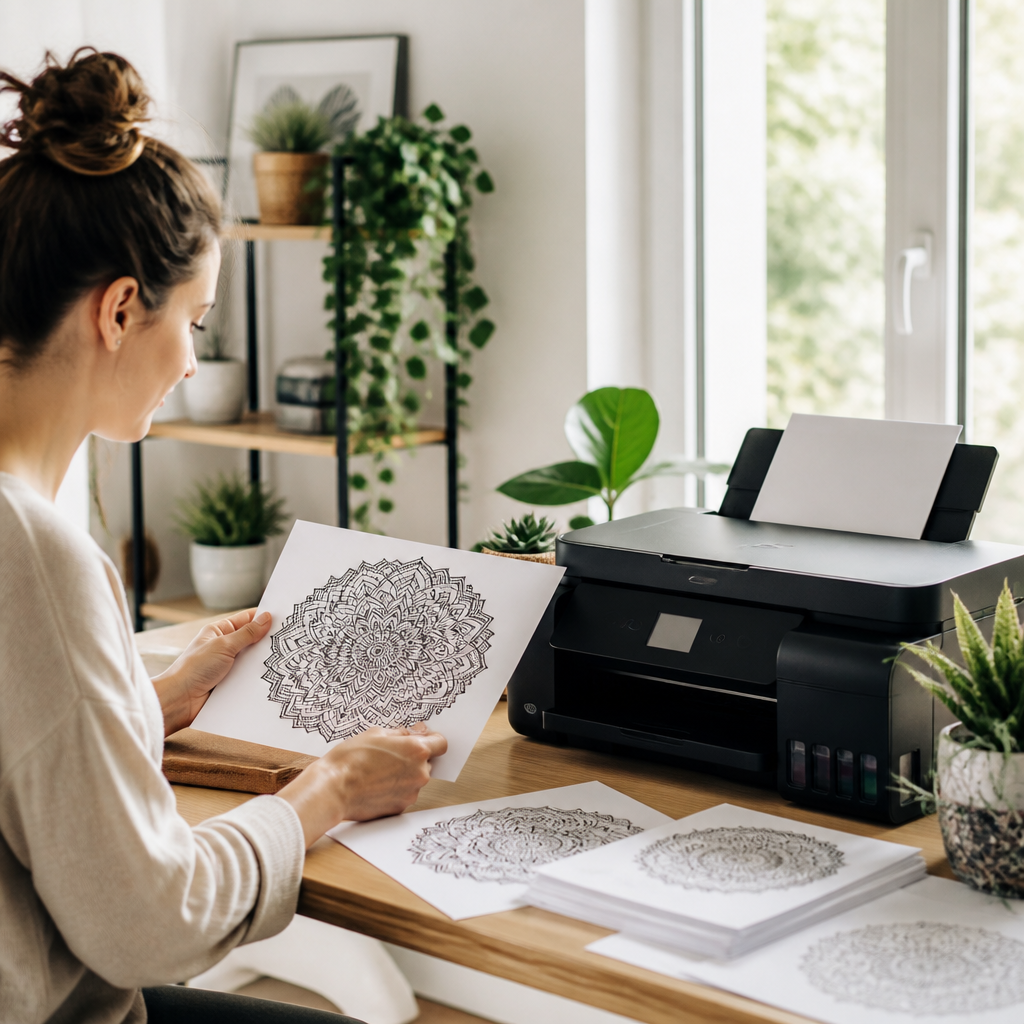
After following these steps, you should see a result that’s easy to color and satisfying to display. Here’s what you can reasonably expect from successful print mandalas at home:
- Crisp, clean outlines with consistent line thickness from center to outer edges
- Accurate proportions (no stretching from incorrect scaling)
- Readable detail in the smallest pattern segments
- Even darkness across the design (no random patchy fades)
- Works well as coloring pages: the lines guide your coloring without disappearing
If you’re using mandala templates or free downloads to create repeating sets, consistent printer settings help ensure every page matches—so you can color one today and another tomorrow without surprise differences.
Conclusion
Printing high-quality mandalas at home is simpler than it sounds: pick a strong printable PDF, confirm it’s the right size (like A4 printables), and optimize your printer settings for crisp, accurate linework. Start with a test print, avoid common mistakes like incorrect scaling or draft mode, and you’ll quickly get coloring pages that look professional and feel great to use. Ready to begin? Choose a mandala, set your home printing settings correctly, and enjoy the relaxing results of well-printed art—whether it’s from a curated pack or free downloads.